Tutorials • cPanel
Access phpMyAdmin with direct link without cPanel
Learn how to access phpMyAdmin directly, without cPanel, through a step-by-step guide. Follow the instructions to manage the database efficiently.
Views 1434Updated 1 anPublished on 09/10/2018by Cătălin A.
Introduction
This tutorial explains how to access phpMyAdmin with a direct link without accessing cPanel.
Requirements
- a cPanel account
- phpMyAdmin software available for download here phpMyAdmin
Steps to Follow
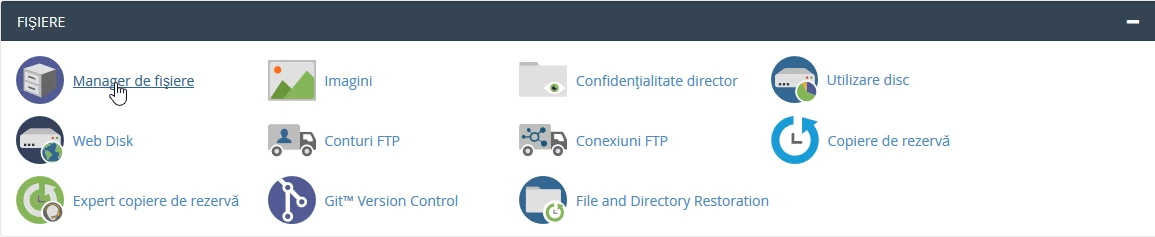
- after logging into the cPanel control panel, in the interface that will be displayed, we look for the "FILES" section, and there we click on "File Manager".
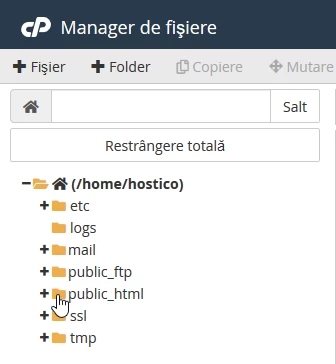
- a new window will open in which the content of the data on hosting will be listed. In that window, access the web directory "public_html".
- in that location, the archive downloaded from the phpMyAdmin site will need to be uploaded by clicking on the "Upload" button

- a new window will open where the "Select file" button will be pressed.
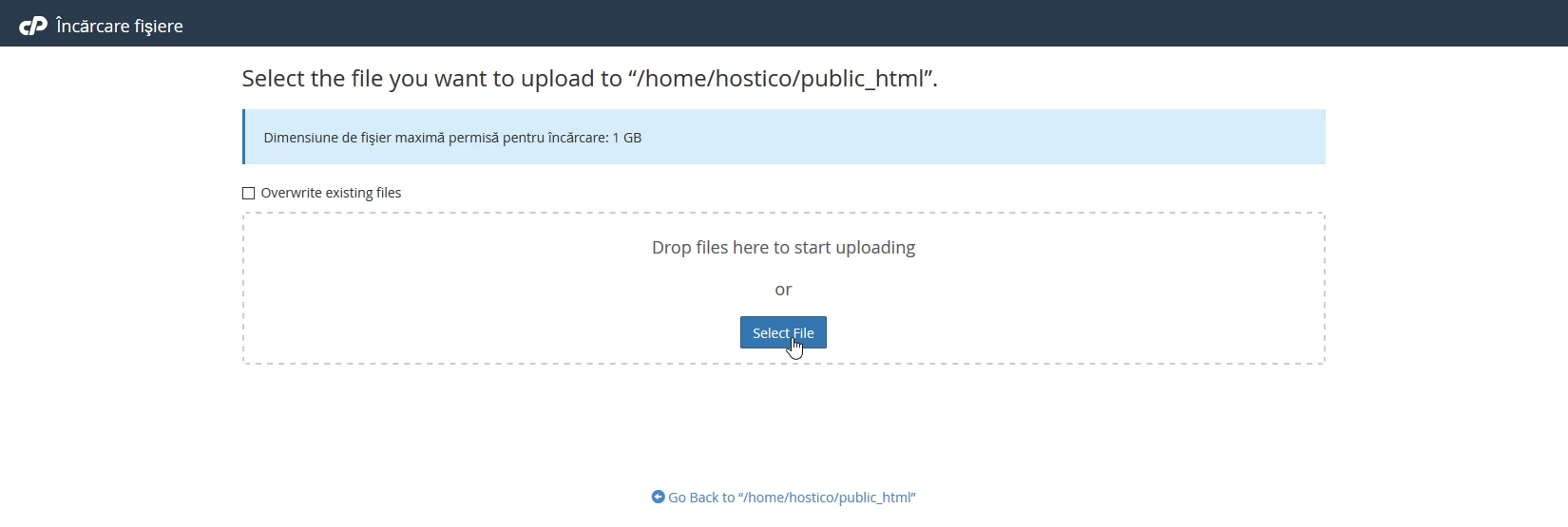
- after selecting the downloaded archive, a progress bar will appear indicating the upload status. Once it reaches 100% the window can be closed.

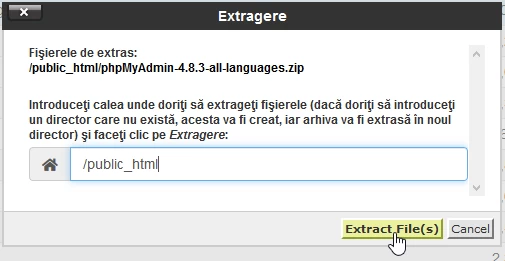
- the next step is unpacking the archive which is done in the file manager in the public_html directory where the archive was uploaded. Select the archive named "phpMyAdmin-4.8.3-all-languages.zip" by clicking on it, then from the top bar press the "Extract" button.

- a window will appear where the "Extract file(s)" button is pressed
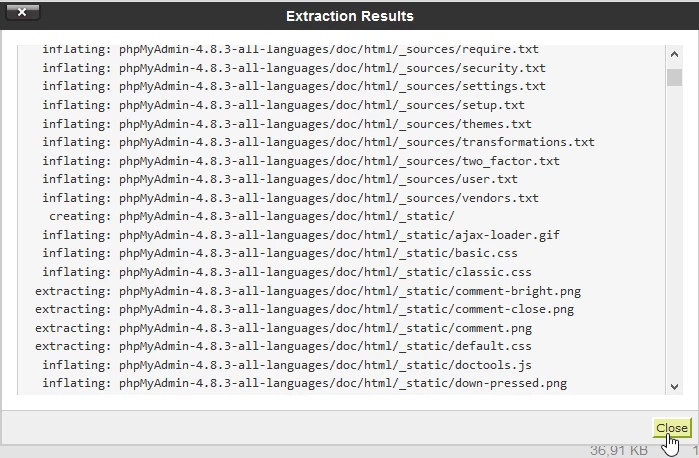
- after unpacking the archive, a window showing the report of the downloaded files will appear, and the "Close" button will need to be pressed.
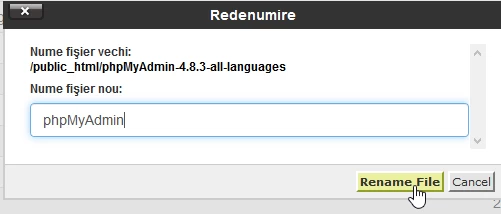
- a new directory with the name of the respective archive, but without the .zip extension, will appear within the public_html directory. This directory needs to be renamed so that only "phpMyAdmin" remains. Renaming is done by selecting the directory in question and pressing the "Rename" button from the bar at the top of the page.

- In the window that will appear, enter the specified name and then press the "Rename file" button, after which all windows can be closed.
- accessing phpMyAdmin will be done in the browser with the domain name.ro/phpMyAdmin, and logging into a database is done with its user and password.
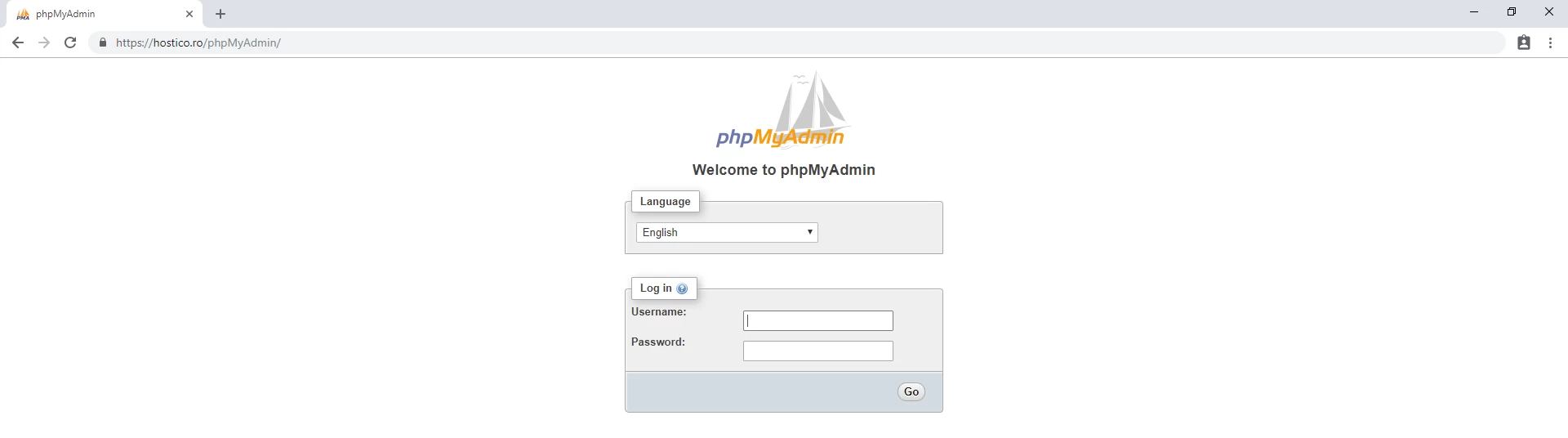 !!!ATTENTION the login link is case sensitive, so you will need to write /phpMyAdmin exactly as the directory was named in public_html.
NOTE:
1. with this method, unlike accessing phpMyAdmin from cPanel, only one database can be viewed, specifically the one whose user and password are used for logging in.
2. phpMyAdmin can also be installed from within the Softaculous application by following the steps described here: Installing an application through the cPanel Softaculous plugin