Tutorials • cPanel
Adding an alias domain or parked domain
Learn how to add an alias or parked domain in cPanel, to make your site accessible from other domain names. Follow the simple steps!
Views 2193Updated 2 aniPublished on 27/06/2017by Florin P.
Introduction
In this tutorial, the necessary steps for adding a domain alias or parked domain are explained. Domain aliases make the website available from another domain name. For example, you can make www.hostico.net and www.hostico.org display the content of the address www.hostico.ro.
Requirements
- An active hosting account and a valid domain.
Steps
- To add an alias domain or a parked domain, we will log into the cPanel account and go to the Domains section,

- Next, we click on the Aliases button which will take us to a new page where we can add the desired alias domain or parked domain.
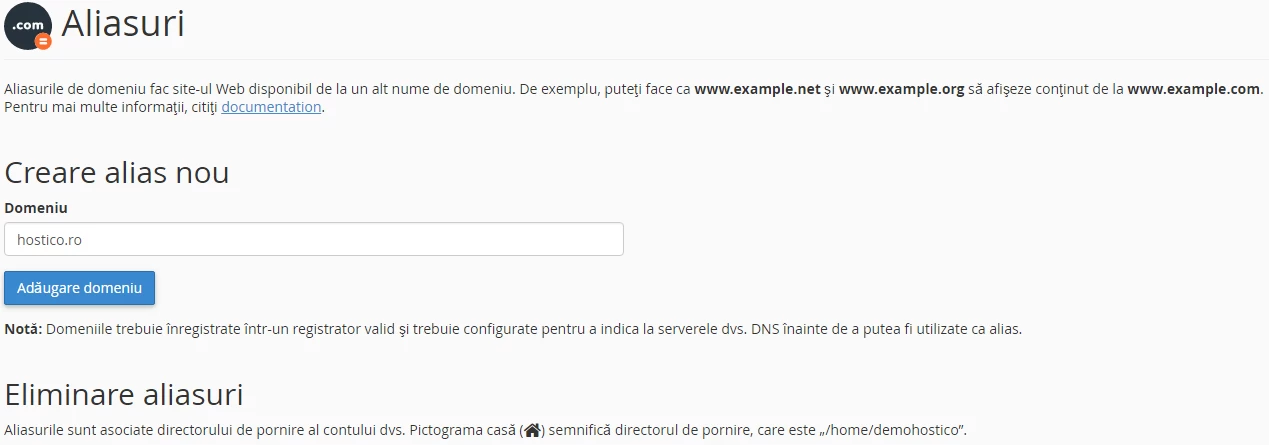
- In the domain field we will add the name of the alias or parked domain, in our case hostico.ro
- Completing this operation will be done by clicking the "Add Domain" button, and a confirmation message will appear if the alias or parked domain has been successfully added.
- To delete an alias or parked domain, we will follow the next section.
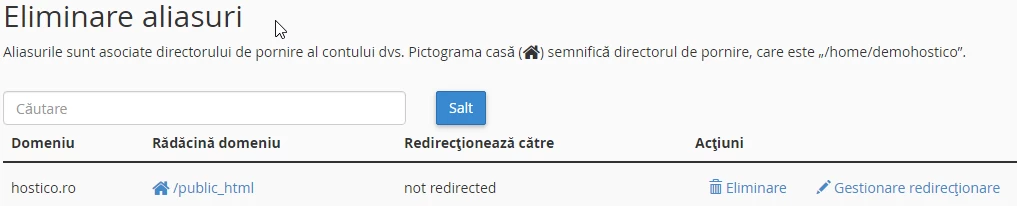
- We will be able to delete the alias domain by simply clicking the "Remove" button, and the system will confirm the deletion of the alias or parked domain.