Tutorials • Webuzo
Authentication in the Webuzo control panel
Learn how to log in to the Webuzo control panel with this simple guide. Follow the steps for secure or non-secure access.
Views 1061Updated 1 anPublished on 15/08/2017by Sebastian S.
Introduction
This tutorial describes the steps required for authentication in the Webuzo control panel.
Requirements
- The login details for the Webuzo control panel, received in the email with the VPS management information.
Steps
- For authentication in the panel, one of the addresses below can be used:
Secure URL with SSL: https://IP:2003
Unsecured URL: https://IP:2002
After the nameservers are set up and propagated, these access options can also be used:
Secure URL with SSL : https://domeniu.xx:2003
Insecure URL : https://domeniu.xx:2002
- Once one of these addresses is accessed, we will be greeted by the Webuzo login window. Here we will have the opportunity to enter the username and password. This information is included in the email with the VPS management details.
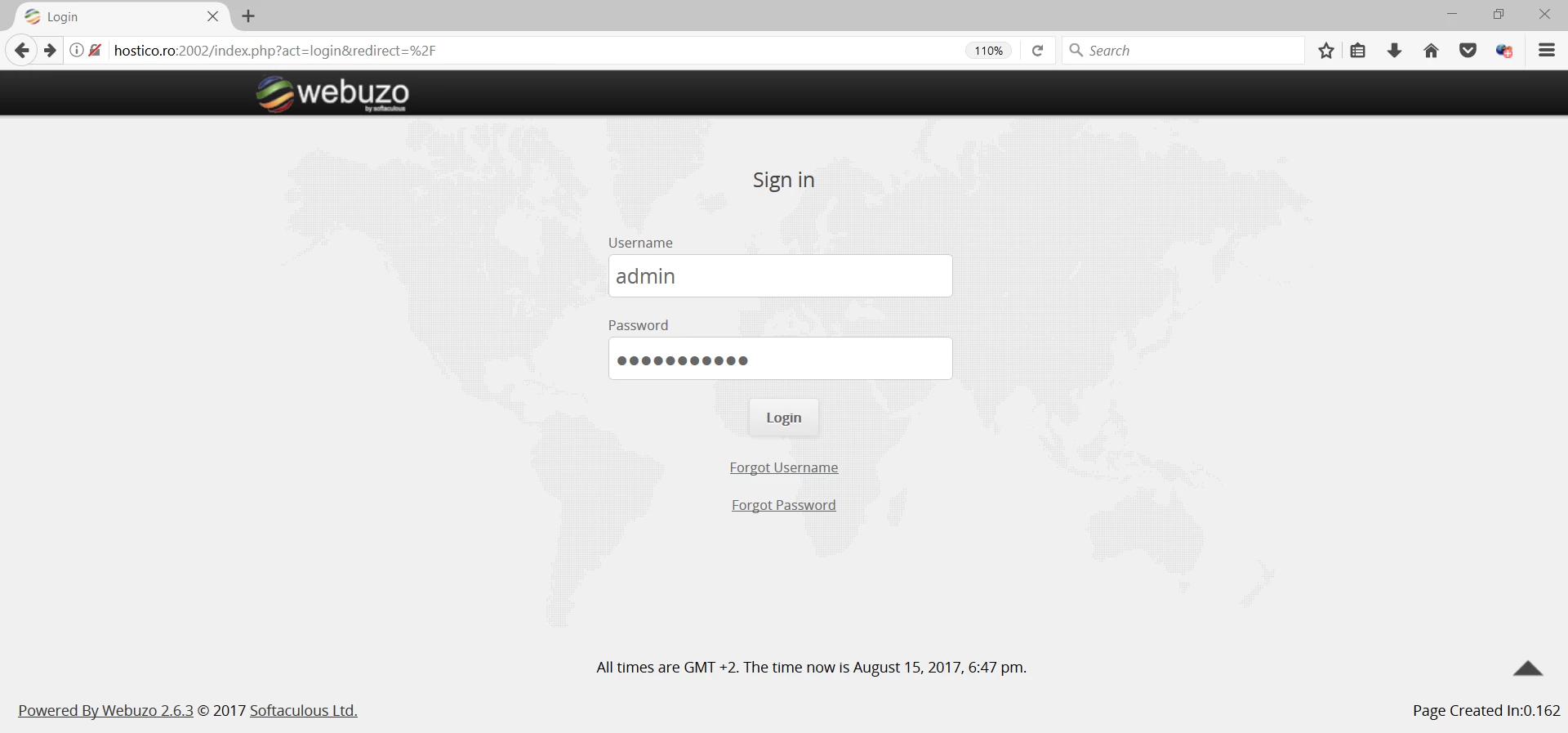
- If the entered data is correct, authentication will be successful.