Tutorials • Dev
Creating a full backup in cPanel
Learn how to create a full backup in cPanel, step by step, to save all your hosting account information and settings.
3
Views 2057Updated 2 aniPublished on 16/07/2021by Eduard K.
Introduction
- This article will show you how to create an archive that contains all the information and settings of your cPanel account.
Requirements
- An active hosting account with cPanel panel, along with login details (username and password).
Steps to follow
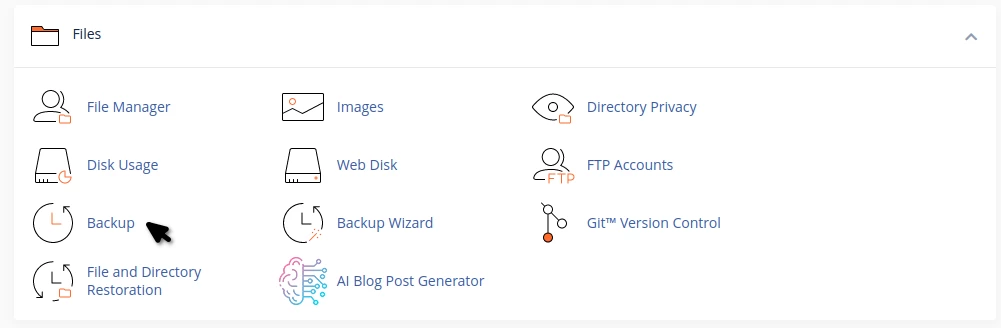
- After logging into the cPanel control panel, in the FILES section, we will access the Backup plugin
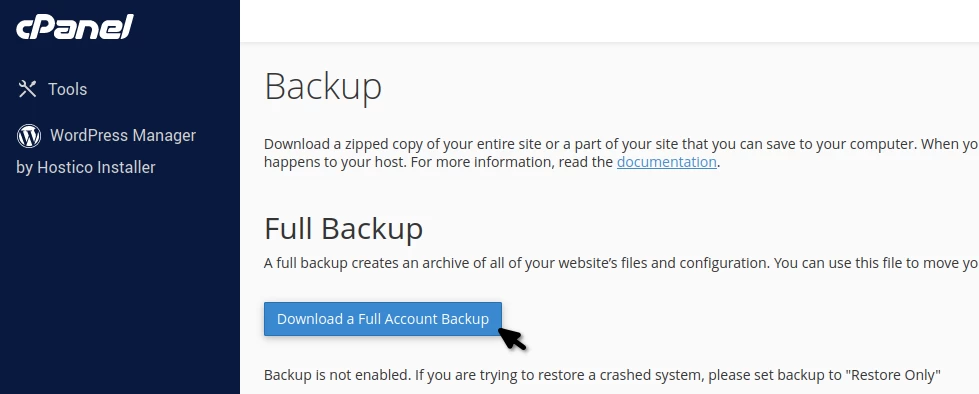
- In the window that will be displayed, go to Download a full account backup.
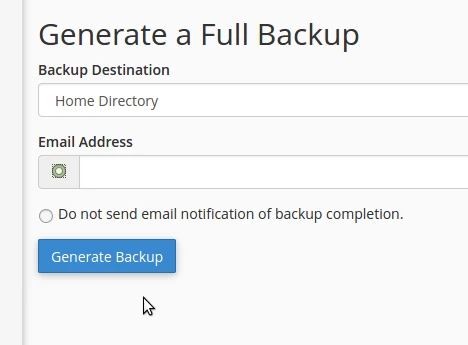
- For backup destination, leave Home Directory so that once the backup is completed, it can be found in the /home directory of the hosting.
- The backup name will appear as "backup-3.2.2020_19-57-05_hostico.tar.gz".
- For the field, Email Address enter the email box where you want the notification to arrive upon backup completion.
- Conversely, to avoid receiving the notification in a specific mailbox, check Do not send email notification of backup completion.
- To start the backup process, press the Generate Backup.