🍁 Autumn Sale — Up to 70% discount for hosting and domains
activate now
Tutorials • cPanel

cPanel Error Log

The cPanel error log displays the most recent 300 entries from the Apache log in reverse chronological order.

1
Views 1002Updated 2 aniPublished on 26/09/2018by Florin P.

Introduction

  • In this tutorial, we will show you how to view the latest 300 entries from the Apache log in reverse chronological order.


Requirements

  • Access to the cPanel account, username and password.


Steps

  • After logging into the cPanel account, go to the Metrics section, and then click on Errors.

Errors Metrics cPanel

  • On the next page, the errors are displayed.
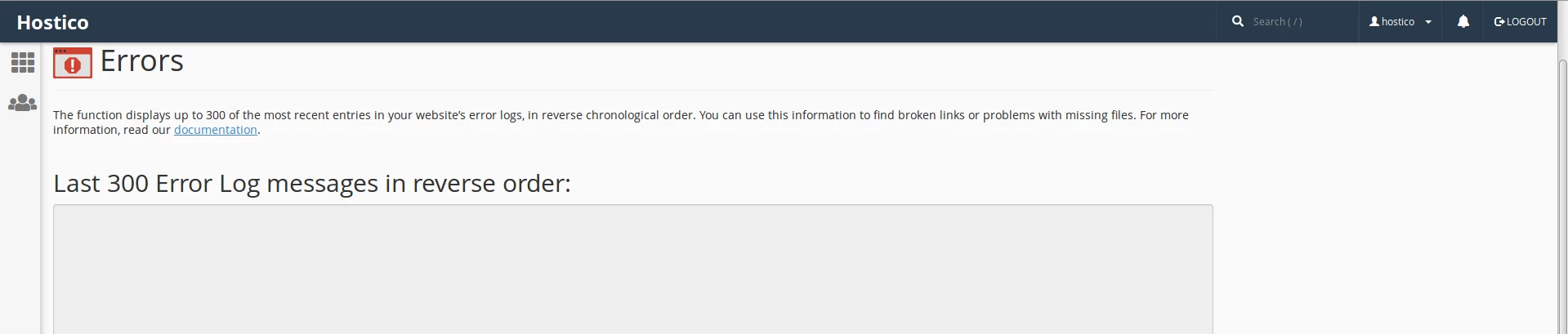
Identificare errors cPanel

Similar Articles

Views 1,002
Updated 2 years ago

The cPanel error log displays the most recent 300 entries from the Apache log in reverse chronological order.

Views 925
Updated 2 years ago

Learn how to check the error log in the Plesk admin panel by quickly and efficiently accessing the necessary settings for managing it.

Views 1,204
Updated 4 years ago

Find out how to enable PHP error display (display_errors) in cPanel, with steps for shared and VPS servers. Follow the simple instructions for configuration!