Tutorials • Commercial
Open support ticket.
Learn how to open a support ticket on Hostico, step by step, including requirements and filling in the necessary fields.
2
Views 1595Updated 1 anPublished on 15/07/2017by Mark D.
Introduction
- In this tutorial you will learn how to open a support ticket;
Requirements
- A Hostico client account - if it does not exist you can access the tutorial Create Hostico client account;
Steps
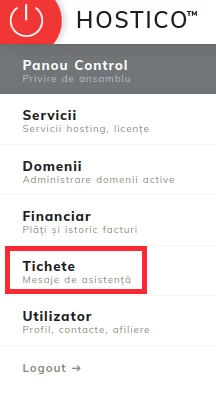
- After logging into the client account, you will need to access the Tickets section on the left side of the page;
 In the new window, we will fill in the displayed fields as follows:
1. Subject - the subject of the request is noted;
2. Message - description of the request;
3. Attachments - click on the plus sign (+) if you want to attach an image, document, file;
4. Department - select the department you wish to contact;
5. Associate Product - click on the service you want to discuss;
6. Priority - select the desired priority level;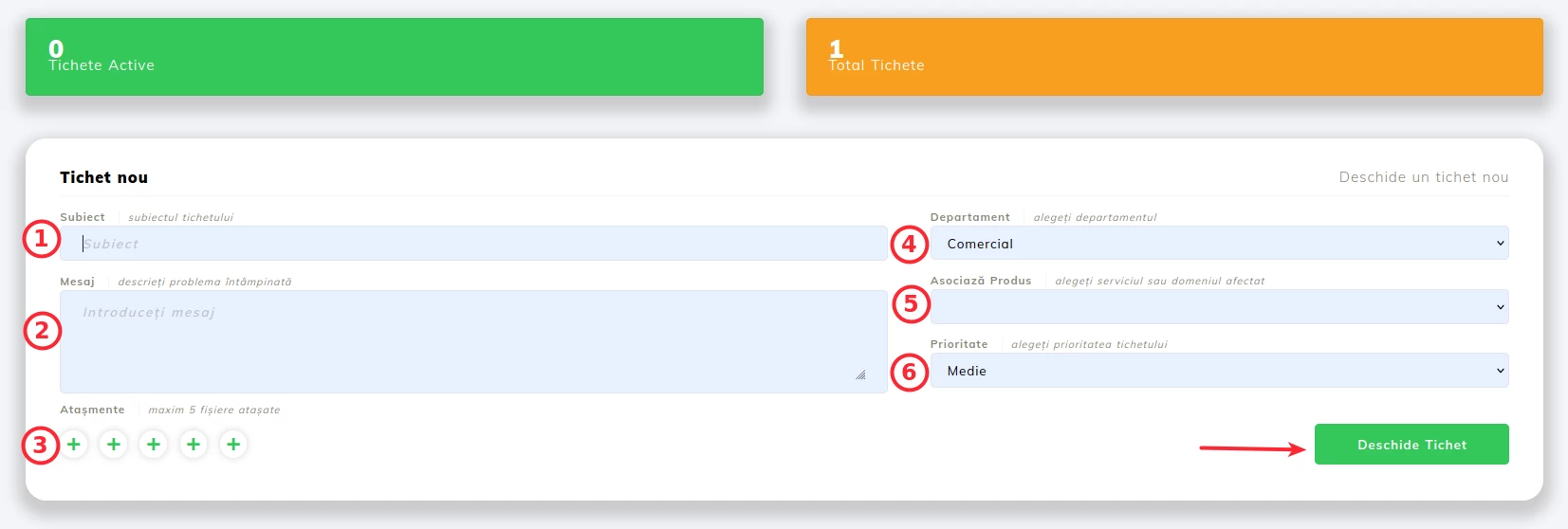
To submit the request after filling in the fields, you will need to click on the Open Ticket. button.