Tutorials • cPanel
Domain redirection in cPanel
Find out how to redirect a domain in cPanel: simple steps to add redirects and manage your domains effectively.
2
Views 2762Updated 2 aniPublished on 20/07/2017by Florin P.
Introduction
- In this tutorial, we will explain the necessary steps to add a redirect or redirect our domain from the cPanel account.
Requirements
- A valid domain.
- cPanel account management details
Steps
- To add a redirect or a domain redirect, we will log into the cPanel account, go to the Domains section, and then click on Redirects.

- A new page will open and here we will be able to add the redirect.
- We will select the type of redirection in the next field, 301 in our case or permanent redirection, the domain we want to redirect hostico.ro, and in the Redirect to field, we will add the domain to which the redirection will be made https://hostico.com.
- In www Redirection we will select Redirect with or without www.
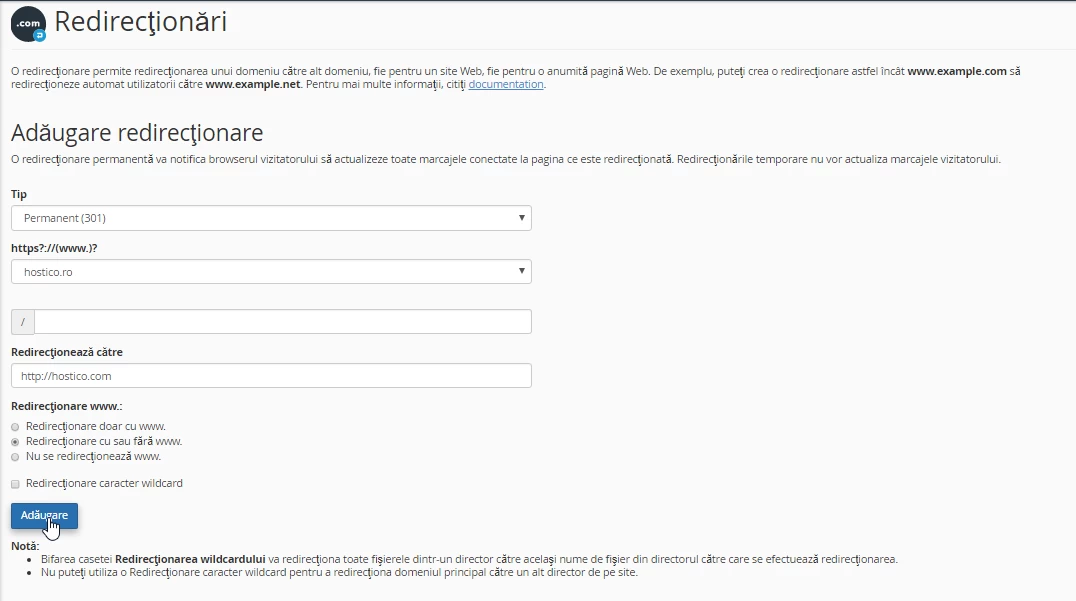
- The completion of this operation will be done by clicking on Add. After adding the redirection from hostico.ro to hostico.com, all visitors who access hostico.ro in their browser will be automatically redirected to hostico.com.