Tutorials • ISPConfig
Configuring an email filter for Domain Alias in the ISPConfig control panel.
This tutorial will present the necessary steps to configure a Domain Alias type email filter, which allows redirecting emails from one domain to another.
Views 1085Updated 3 aniPublished on 29/11/2022by Robert S.
Introduction
- This feature of the ISPConfig panel allows for redirecting all emails destined for one domain to another domain.
- For example, you will use this feature if you have the email addresses office@hostico.net and contact@hostico.net and you want these two addresses to be accessible as recipients on the domain hostico.org, without physically creating the mailboxes on hostico.org. Basically, by adding this type of alias, all the mailboxes on hostico.net will be accessible on hostico.org, and emails addressed to hostico.org will be delivered to the hostico.net mailboxes.
Requirements
- The ISPConfig panel administration data received in the email inbox associated with the Hostico account when the VPS was activated.
Steps to follow
- First, we will connect to the ISPConfig control panel using one of the access addresses:
https://HOSTNAME:10200
or
https://IP:10200
or
https://DOMAIN:10200
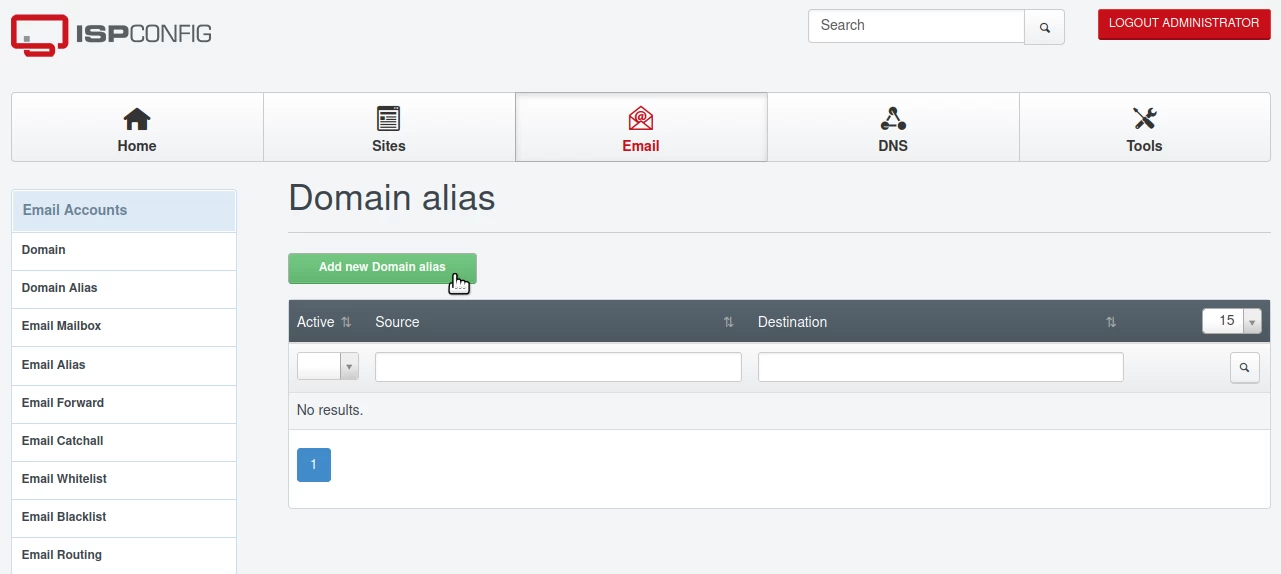
- After logging into the panel, we will click on the Email button from the navigation bar.
- Next, we will click on the Domain Alias menu from the Email Accounts category, then click the Add new Domain Alias button.
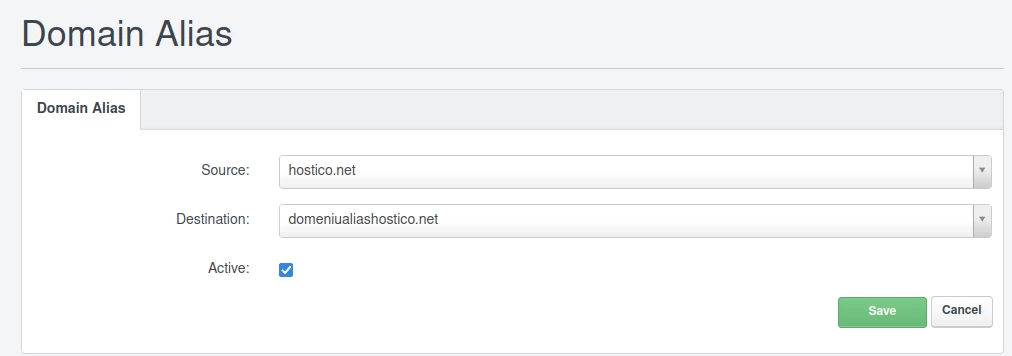
In the next window, we will complete the fields as follows:
-Source: We select the domain to which we want to associate the existing/created mailboxes on the destination domain. In our example, this will be hostico.org;
-Destination: We select the domain where the email boxes are created. In our example, this will be hostico.net;
-Active: Keep it checked. Uncheck if you want to deactivate the alias.
Next, we will click on the save button at the bottom right.