Tutorials • cPanel
Website optimization from the cPanel control panel using mod_deflate
This article describes the steps necessary for optimizing the website using the Optimize Website menu in cPanel.
2
Views 1670Updated 1 anPublished on 06/10/2017by Sebastian S.
Introduction
- cPanel allows optimization of data transfer between the server and the website visitor using the Apache mod_deflate module. This module compresses the data before it is sent, using gzip.
- Enabling mod_deflate helps increase the loading speed of the site and reduces bandwidth consumption.
- The module can be activated either manually, by adding rules to the
.htaccessfile, or automatically through the cPanel administration panel. This tutorial presents the activation method via cPanel.
Requirements
- Access to the cPanel administration panel using the login credentials received via email.
Steps
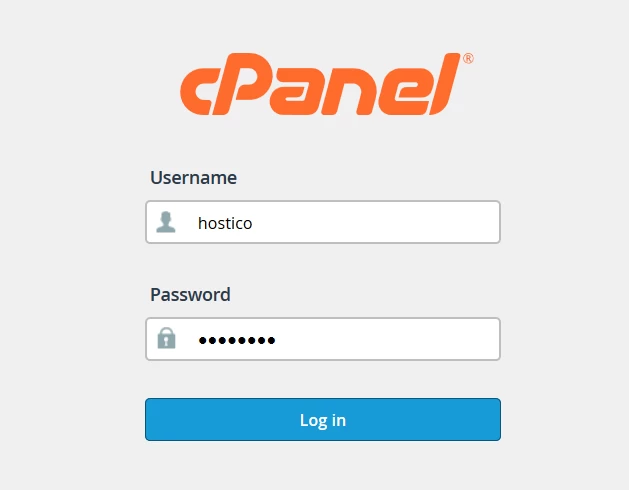
- Log in to the cPanel control panel using your access credentials.
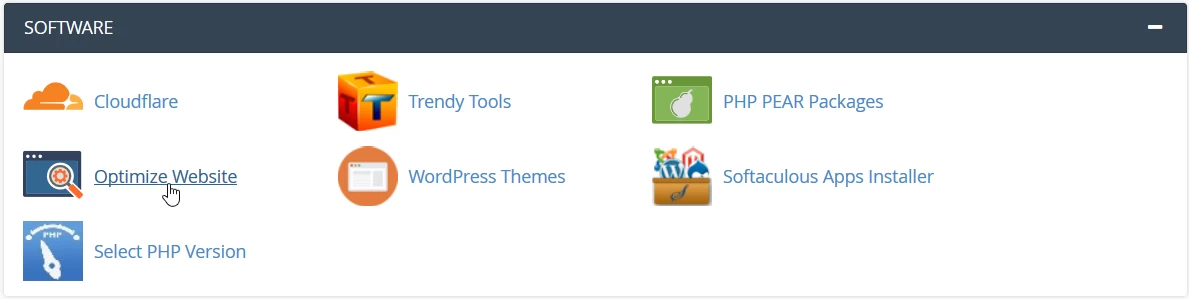
- After logging in, navigate to the Software section and click on Optimize Website.
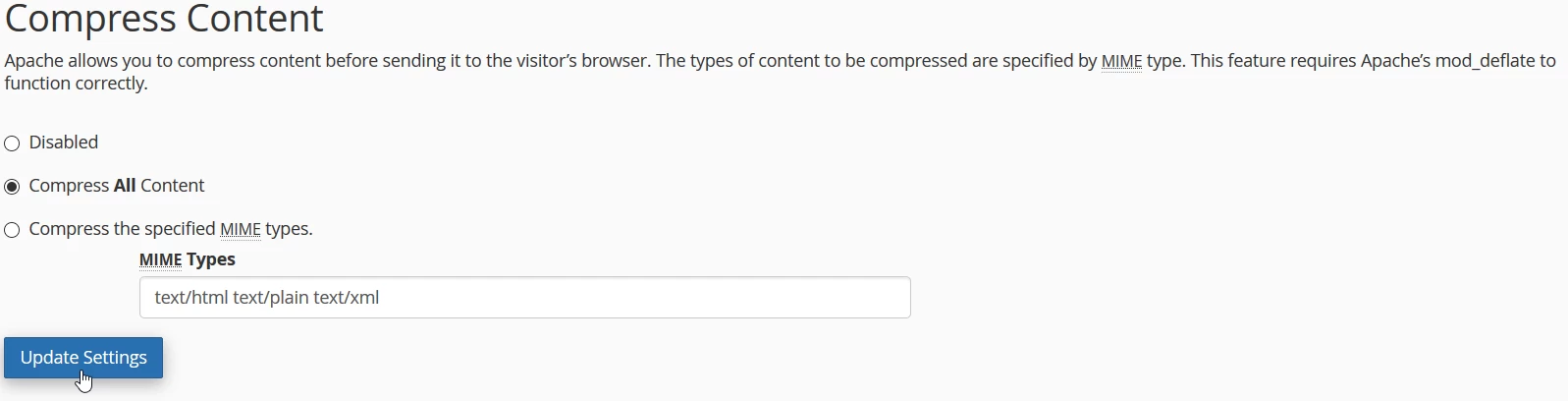
- On the next page, select the desired option to enable mod_deflate:
- Disabled: The module is disabled; no compression is applied.
- Compress All Content: The module is enabled and compresses all types of files, including
.js,.css,.html,.xml,.txt, etc. - Compress the specified MIME types: The module is activated and compresses only the specified files. Enter the file types (MIME types) in the MIME Types field, in the format:
text/htmlfor HTML files.text/plainfor text files.text/xmlfor XML files.
text/html text/plain text/xml. - After you have selected the desired option, click on Update Settings to apply the changes.
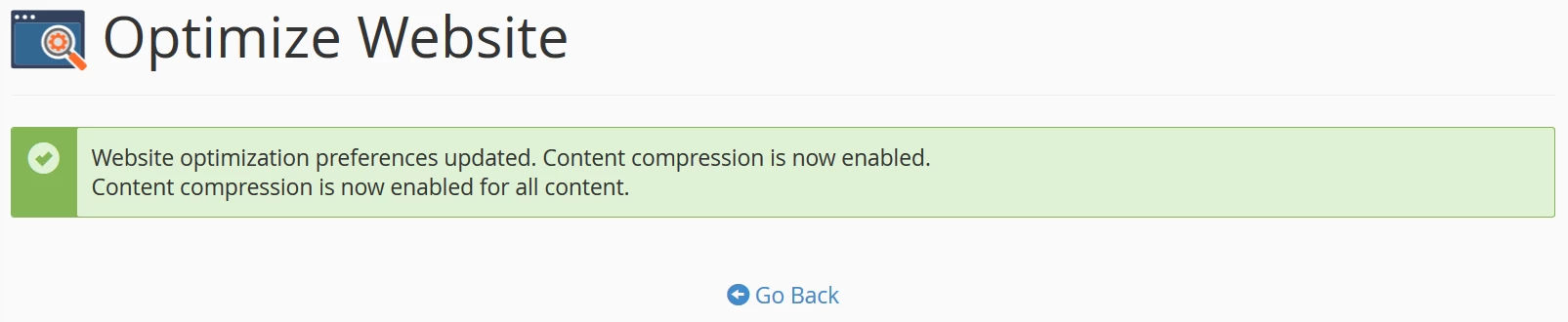
- After activation, a confirmation window will inform you that the settings have been successfully applied.
- Once you complete these steps, compression via mod_deflate will be enabled for all domains associated with your cPanel account.