Tutorials • Dev
Creating a database using PostgreSQL Database Wizard
In this tutorial, we will show you how to create a new database with an allocated user using the PostgreSQL Database Wizard.
Views 1188Updated 2 aniPublished on 16/07/2021by Eduard K.
Introduction
This tutorial shows how we can create a new database with a user using the PostgreSQL Database Wizard
Requirements
Access to the cPanel account, username and password.
Steps
- We log into the control panel with the data related to our account.

- After logging into the cPanel control panel, in the DATABASES section, we will access the PostgreSQL Databases Wizard
plugin

- We enter the name of the database we want to create.

- We enter the name of the user that we want to ît create and the password associated with the user respectively.
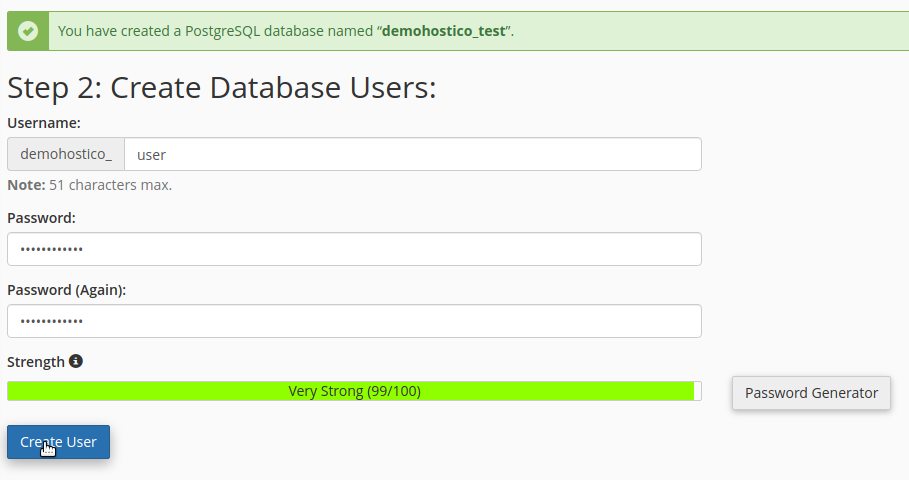
- We add user created at the database created.
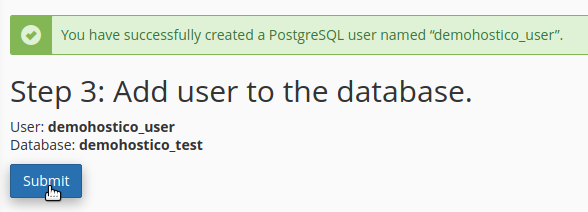
- In this moment the database and the user associated have been created.

- Having the possibility to add another user database, or to create another database.