Tutorials • cPanel
Creating a database with the help of MySQL® Database Wizard
Learn how to create a MySQL database using cPanel. A step-by-step tutorial for setting up the user and the necessary permissions.
Views 996Updated 2 aniPublished on 25/09/2018by Florin P.
Introduction
- In this tutorial, we will show you how to create a new database, associate a user, and provide the necessary permissions.
Requirements
- Access to the cPanel account, username and password.
Steps
- After logging into the cPanel account, we will go to the Databases section, and then click on MySQL® Database Wizard.

- In the next page at step 1 we will write the name of the database in the New Database field, in our case new. The database will automatically be allocated the prefix of the cPanel username hostico_, afterwards we will click on the Next Step button.

- We proceed to step 2 where we will choose the database username and its password. In our case, the name is the same hostico_new, and then click on the Create User button.
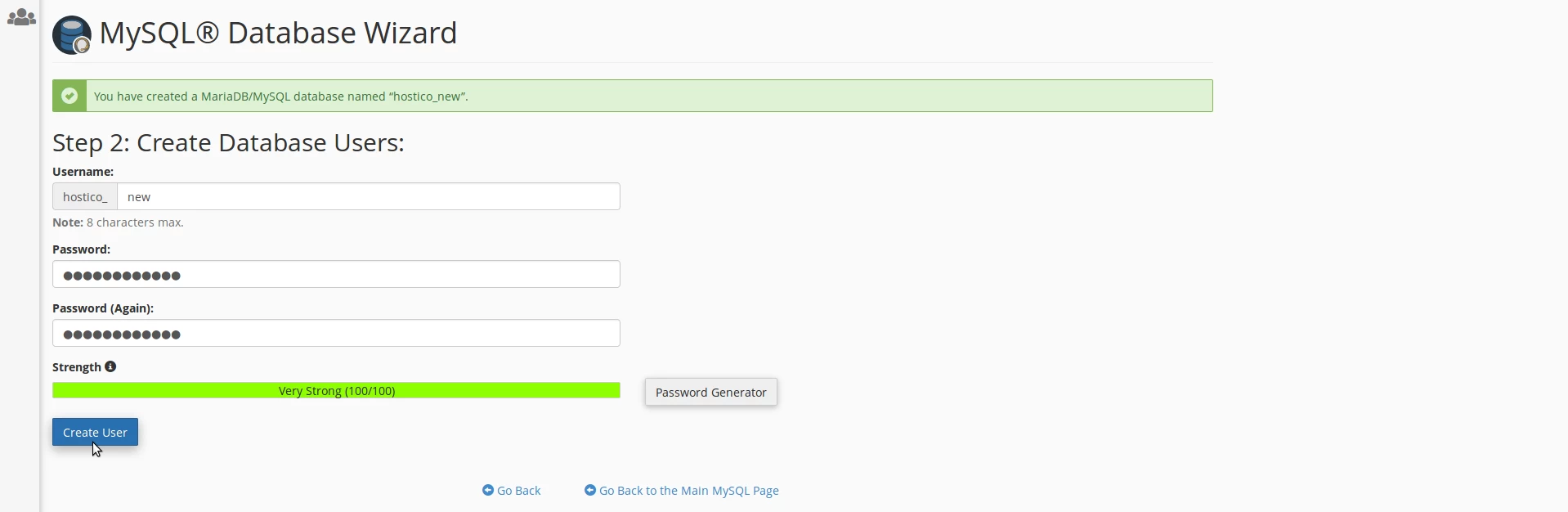
- In step 3 we will allocate the user of the previously created database and provide the necessary permissions, then click on the Next Step button.
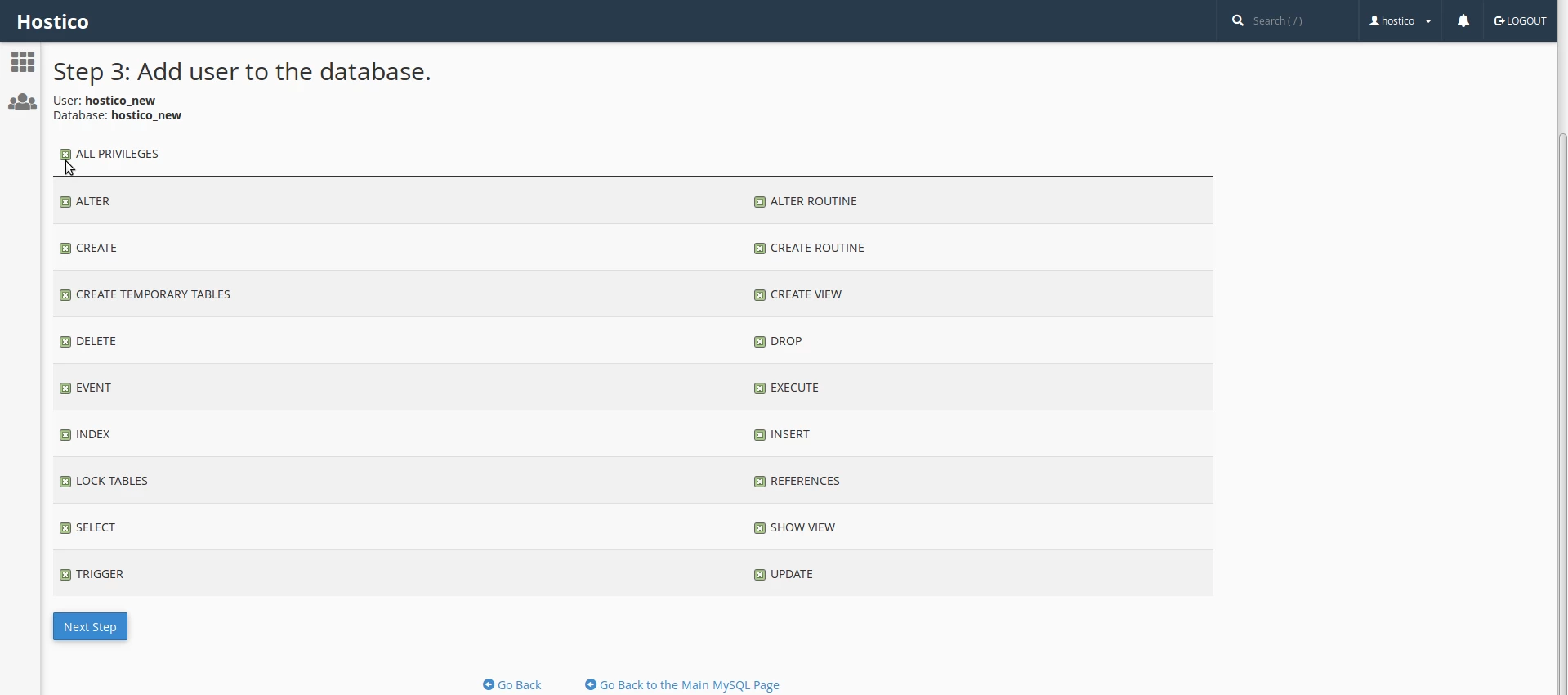
- Step 4 will confirm the successful addition of the user hostico_new to the database with the same name hostico_new.
